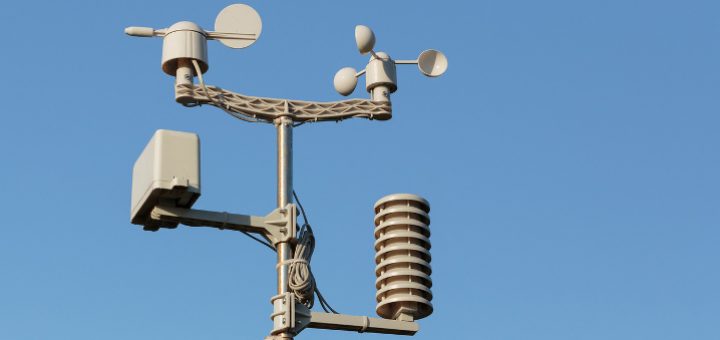
PLEASE NOTE: This project is a work in progress and not yet complete, but is here as a reference for the sections that are complete.
Summary
This course works through the steps to finish up with a completed weather station.
Prior to starting this project you should have a good understanding of the basics of programming an Arduino and using the various sensors that we will need. Therefore please ensure you have worked through the following classes:
Thinking
For a basic weather station we need to perform two basic tasks:
- Measure the current conditions
- Display the values
Having done the previous classess, you know how to measure the conditions. In this project we will then store these values so that once we have measured all of the data we can create a display with the corresponding data in it.
We will prototype this first on a breadboard and then once we have it working and we know how things will need to be connected we will create a more permanent stripboard and solder the components to it.
Finally we will then encase this in a housing so that it can be mounted where it is needed.
Equipment
- Arduino
- DS18B20 Temperature Sensor
- DHT11 Humidity and temperature sensor
- 16 x 2 LCD Display
- 4.7k ohm resistor
- 220 ohm resistor
- 10k ohm resistor
- 10k ohm variable resistor
- 16 connecting wires
Doing
The best way to do any project is one step at a time, testing as we go.
Let’s start by writing the code and rather than use example as we did in the class for the screen we’ll only add the code we need.
Create a new project with File->New then save it as WeatherStation in whichever directory you have your other Arduino projects. Please note it will automatically create a directory the same name as above and then store the file in that directory.
Next we need to include the library for the screen. We do this by clicking Sketch->Include Library->LiquidCrystal and what you should see is this line added to the top of your new project file:
#include <LiquidCrystal.h>
This has all of the references we need to be able to use the library for accessing the screen. Below this and before the setup() function we then need to initialise the screen and tell it which pins are being used:
#include <LiquidCrystal.h>

LiquidCrystal lcd(12, 11, 5, 4, 3, 2);
We then need to add the code that does the work. By default when we create a new Arduino sketch (program) there are two functions:
- setup() – called once when the Arduino is restarted
- loop() – called repeatedly until the Arduino is turned off
Within the setup() function we will need to set the number of columns and rows for the screen, so that the library knows it’s size. As we cannot guarantee the state of the screen we will also clear it. Then within loop() we will need to perform the steps we discussed above measuring the value from the sensor and then displaying it to the screen.
Firstly let’s add in comments to that effect to remind ourselves initially what we are going to do and then longer term when we come back to this sketch in the future it will remind us what the various elements do.
The whole sketch now looks something like this:
#include <LiquidCrystal.h>

LiquidCrystal lcd(12, 11, 5, 4, 3, 2);

// Setup code run once at the start
void setup() {
  // Initialise and clear the screen
}

// Called repeatedly
void loop() {
  // Read Sensors

  // Display readings
}
In the setup() function we can add the commands to initialise the screen and ensure it is clear:
void setup() {
  // Initialise and clear the screen
  lcd.begin(16, 2);
  lcd.clear();
}
We want to get to a point where we can test this initially though so for now let’s just add enough code to prove it’s working:
void loop() {
  // Read Sensors

  // Display readings
  lcd.setCursor(0, 0);
  lcd.print("Hello");
  lcd.setCursor(0, 1);
  lcd.print("World");
}
Now compile the code to validate it by clicking the ‘tick’ button on the menu bar, correct any errors, and then connect the Arduino and upload it.
Next we need to connect the screen as we did in the screen class.
Here is the circuit:

The connections are as follows:
| From | To |
|---|---|
| Arduino pin 2 | LCD pin 14 |
| Arduino pin 3 | LCD pin 13 |
| Arduino pin 4 | LCD pin 12 |
| Arduino pin 5 | LCD pin 11 |
| Arduino pin 11 | LCD pin 6 |
| Arduino pin 12 | LCD pin 4 |
| Arduino +5v | Breadboard positive rail |
| Arduino GND | Breadboard negative rail |
| LCD pin 1 | Breadboard negative rail |
| LCD pin 2 | Breadboard positive rail |
| LCD pin 3 | Centre leg of the variable resistor |
| LCD pin 5 | Breadboard negative rail |
| LCD pin 15 | Via a 220 ohm resistor to breadboard positive rail |
| LCD pin 16 | Breadboard negative rail |
Now CHECK all of your connections.
Once you’re confident that they are all correct connect the Arduino to your computer and you should see the screen light up and display Hello World, one word on each row. If the screen lights but nothing is visible rotate the variable resistor to change the brightness setting.
Ok, we have a working screen, now we need to get some data and display that but before we do let’s disconnect the Arduino from the computer.
The connections for the DHT11 temperature sensor are as follows:
| From | To |
|---|---|
| Arduino pin 7 | Sensor pin 1 |
| Arduino +5v | Breadboard positive rail |
| Arduino GND | Breadboard negative rail |
| Sensor pin 0 | Breadboard positive rail |
| Sensor pin 3 | Breadboard negative rail |
| Sensor pin 1 | Via a 10k ohm resistor to breadboard positive rail |
Now CHECK all of your connections.
Before we connect the Arduino let’s update the code to read the data from the sensor.
Exactly as we did for the screen the first step is to add include the library in the sketch. Click Sketch->Include Library->DHT sensor library and this will add #include <DHT.h> to the top of the sketch.
For the library, in the same way that there is a call to initialise the LCD display there is also a call to initialise the DHT library, let’s add this next to the line for the LCD to keep things neat:
DHT dht(7, DHT11);
LiquidCrystal lcd(12, 11, 5, 4, 3, 2);
These can be in any order but again to keep things neat we prefer to put them in the same order.
The LCD also has a begin() method, which needs to be called once during setup, so let’s add that to our setup() function:
void setup() {
  dht.begin();

  // Initialise and clear the screen
  lcd.begin(16, 2);
  lcd.clear();
}
Then we need to take the measurement. However this sensor requires that we do not take a reading more frequently than every two seconds so we need to wait and then take the reading. We’ll put this code just under the comment about reading the sensors:
  // Read Sensors
  delay(2000);
  float h = dht.readHumidity();
  // Read temperature as Celsius (the default)
  float t = dht.readTemperature();
So, now we’ve read the values and have them stored in the variables named h and t. Next we need to format them so that then can be displayed. The quickest way to do this is to print some text for a row, move the position to after the text and then print the value. So for the humidity for example we could do:
  // Display readings
  lcd.setCursor(0, 0);
  lcd.print("H:");
  lcd.setCursor(2, 0);
  lcd.print(h);
This starts at the beginning of the row, prints H:, moves to the third character (position number 2) and then prints the value. We can do the same for the temperature but on the next row:
  lcd.setCursor(0, 1);
  lcd.print("T:");
  lcd.setCursor(2, 1);
  lcd.print(t);
The only other thing we need to take into account is that whatever is written to the display will stay on the display until it is cleared or overwritten. So if the temperature went to 99 degrees we would have:
T:99.00
When it went to 100 we would have:
T:100.00
However when it came back down to 99 we would have:
T:99.000
because the final zero would still be there from when it was 100. Therefore it’s best if we clear the screen each time just before we display the new values.
The final code looks like this:
#include <DHT.h>
#include <LiquidCrystal.h>

DHT dht(7, DHT11);
LiquidCrystal lcd(12, 11, 5, 4, 3, 2);

// Setup code run once at the start
void setup() {
  dht.begin();

  // Initialise and clear the screen
  lcd.begin(16, 2);
  lcd.clear();
}

// Called repeatedly
void loop() {
  // Read Sensors
  delay(2000);
  float h = dht.readHumidity();
  // Read temperature as Celsius (the default)
  float t = dht.readTemperature();

  lcd.clear();

  // Display readings
  lcd.setCursor(0, 0);
  lcd.print("H:");
  lcd.setCursor(2, 0);
  lcd.print(h);

  lcd.setCursor(0, 1);
  lcd.print("T:");
  lcd.setCursor(2, 1);
  lcd.print(t);
}
That’s it, you now have a basic working weather station.